ok but how does git work
July 13, 2026 -WHY HELLO THERE today I will be trying to explain how git works in super simple terms (based on my very limited knowledge)
I've been trying to learn more about webdev and as a part of this, I tried to learn more about how git works. I've used git for my site for a while now but I basically understood nothing about it other than haha commit haha push pleas woekr which led to uhhh many a problems in the past (involving lots of frantic researching on how to undo git rebase --hard LMAO)
Anyways!! Thought I'd make a little guide- to check my understanding and provide a lil reference for myself in the future aaand maybe it will help someone else too
Ft some very scuffed yummy diagrams i drew on microsoft word with my trackpad LMAO
what even is git???
Right!! So what is git?
First off, git is NOT the same as github. Just uhh forget about github for now, yeah?
Git basically takes a collection of files and keeps a record of its save history. Without git, if you save a file, that's it. That's what you're left with. Want to go back and see what the file looked like 3 days ago? Too bad, you can't.
With git, it keeps a little log of every time you save! So you can go back and check out different parts of your files history.
You can think of it like save files in a video game! Without git, it's like having only one save slot. With git, you can save to a new slot each time, so that if you wanted to, you could go back to an earlier save file and start progress again from there.
using your terminal
Before we set up git, let's make sure you know how to use the terminal since we'll be using commands in there. The main thing you'll need to know how to do is make sure you're in the correct folder.
For now, think of the terminal as like a file browser but without the fancy GUI. We need to go inside the folder you want to mess with (in this case, add git to) so we can run commands inside of it.
The command we use to go into folders is cd, which stands for change directory.
You can do cd folder-name to enter a folder in whichever folder you're currently inside, or cd '/path/to/folder' to use the full path. There's probably an option to copy the folder path inside your usual file explorer. Just copy that and add it to a cd command to enter the folder you want to add git to.
To double check that you're in the right folder, you can run ls. This just lists out all the contents of the folder you're in.
cool, cool. so how do i use git?
Once you're in your desired folder, run git init to add git to it. Cool! Now your folder has the ability to store save histories buuuut it isn't actually doing that yet. It's like we have a box capable of keeping save histories of things inside of it, but we haven't actually told the computer what to put inside the box. We can keep saving things normally, but since nothing is in the box, nothing will get save histories.
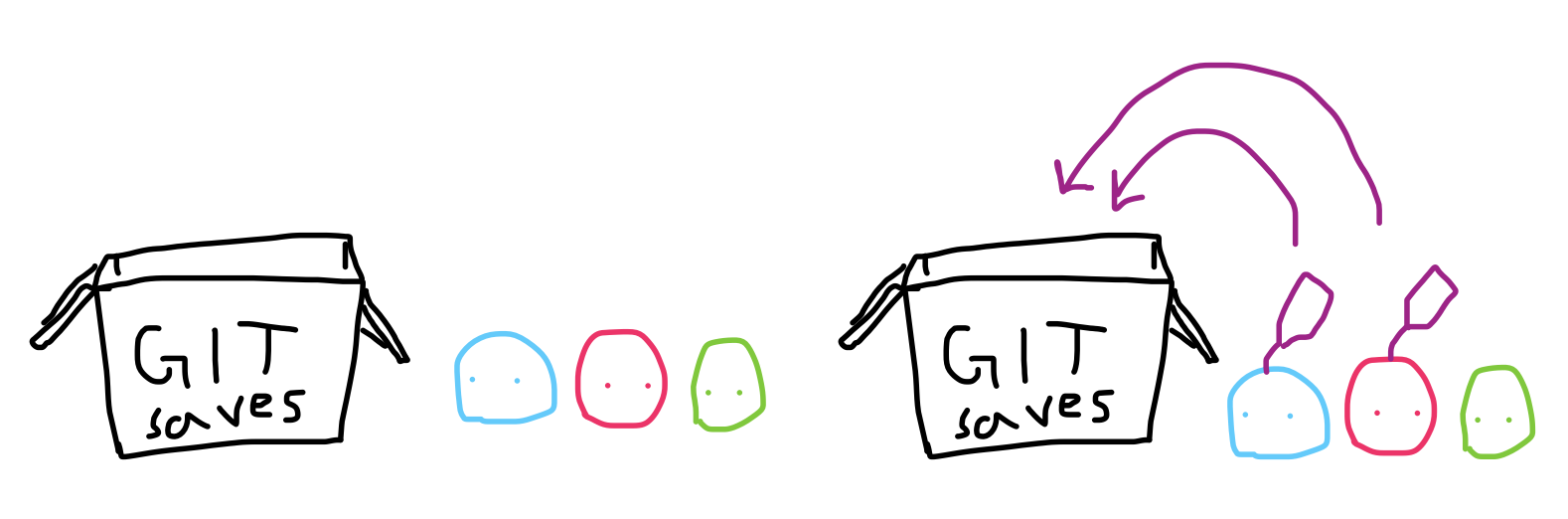
We need to first add files to be tracked by git (like tagging items to say, hey, when you save, put these in the git box please). Say you want index.html to be tracked- run git add index.html. If you want everything to be added, run git add . The period refers to everything. Anything you add after this is automatically tracked (or tagged).
A similar thing can be done with git rm (eg. git rm index.html). This removes an item from git. Note that this doesn't delete the file locally, just like how git add doesn't make a new duplicate file. It simply removes the "tag" that tells git to keep track of its saves. You can keep editing the file normally; it just won't get a save history.
Brief tangent to talk about .gitignore!!
You can make a new file called .gitignore, which will tell git to NOT tag any files listed inside (so you can run git add . or add new files and make sure that certain files are excluded).
For people using mac, there's this pesky little .DS_Store file that's present in every folder that messes things up if you try and deploy it onto neocities or something. So add a .gitignore file and add .DS_Store into it to make sure it isn't tracked! (and yeah, just add the name. Your .gitignore should have one line right now and it's .DS_Store)
If some of your .DS_Stores are already being tracked, you can run find . -name .DS_Store -print0 | xargs -0 git rm -f --ignore-unmatch to remove them from tracking.
sooo then how do i save?
This is where commits come in! A commit in git is like creating a new save. It takes a snapshot of what your files look like at this current moment that you can come back to later.
Going back to our rpg game analogy, it's like how you can keep saving normally, but if you want to be able to come back to this point later on (like a point where the narrative diverges), you would save to a new save slot. That's what a commit is like: saving to a new save slot.
Another analogy!! It's like making a copy or a backup of a file before making a big change. Then, if the change goes bad, you can always go back to your older copy. A commit is like doing that without actually making a physical copy.
To make a new commit, run git commit -m 'message'. Change the message to describe what you did / changed in this commit (like 'added image.png').
looking at old save files
To take a look at older versions of your file (like old saves), use git log to get a list of all the past commits (saves) within your branch (we look at branching later).
Find the commit you check out to look at and copy the really long string of letters and numbers (that's called the hash- it's like the ID of your commit) and run git checkout HASH, replacing HASH with the long string you copied.
You aren't reverting changes, and the newer commits are still there; you're just checking out the older save. It's like taking a look at the save history in google docs-- you can look at previous versions but you can always go back out to the most recent version when you're done.
Side note: the "you" is called head. When you check out an older commit, you're moving your head to that older commit so you can take a look at what the files looked like at that point in time.
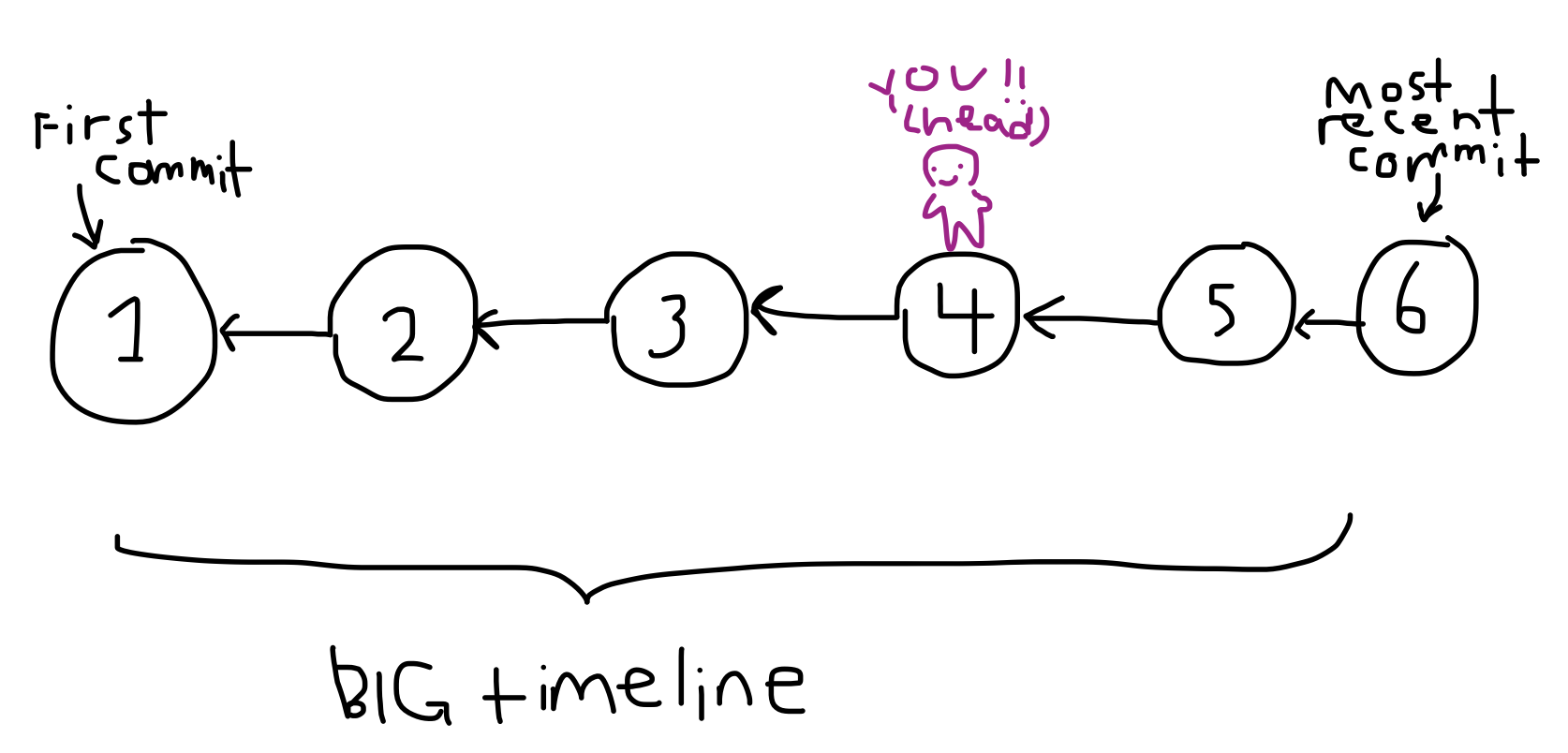
To return to the most recent commit, run git checkout BRANCHNAME to go to the most recent commit from the branch called BRANCHNAME (we will go over branches later!!). The main branch is usually called master, so for now, ignore branch stuffs and just run git checkout master to get to the most recent version (or do git checkout main if that doesn't work-- your branch might be called main instead!)
brief notes on branching
So turns out later is now lol. I'll only really be explaining branching super briefly since I still don't really understand it that well myself.
Branching is like making a new alternate timeline. Your normal timeline is called master (might be called main in some places). Say you want to mess around with some things but aren't sure if you want to keep them- make a new branch! Then, if you want to scrap everything, it's easy to just remove that branch and hop back onto the master branch to keep working from there. If you want to keep those changes, you can merge your new branch and the main branch, which is basically just taking all the changes you made and adding them onto the master branch.
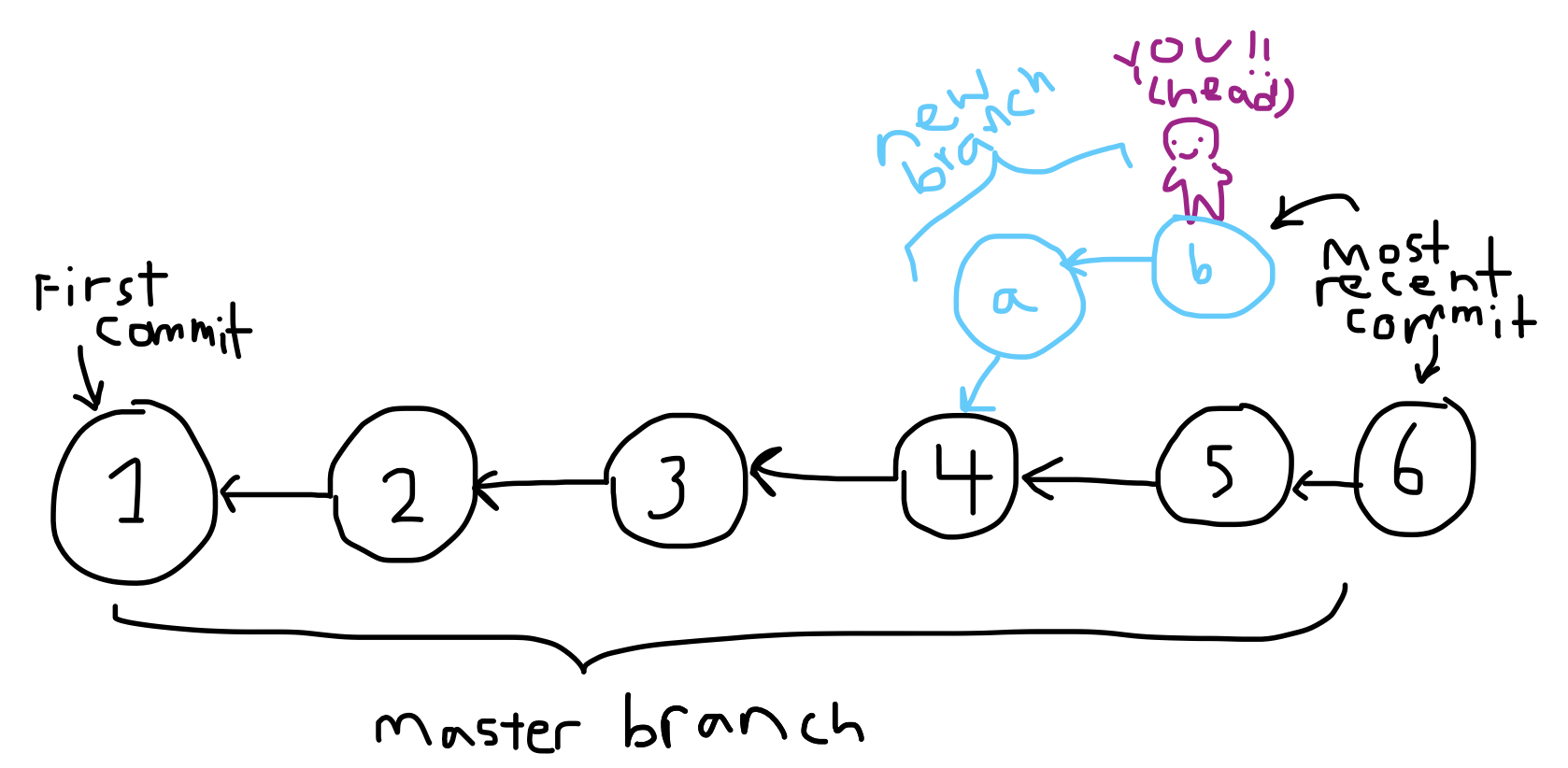
In a more collaborative sense, different people can work on different parts of the same project on different branches-- so that they're more separated and won't interfere with each other's work. Then, when they're happy with the changes, they can merge their changes to add them onto the master branch.
Branching is like making a copy of a project to take home and work on in you're on little workspace. Then, when you're done, you can take your changes and shove them back onto the main copy.
wooo github action
Ok you can re-remember github now lol. All git stuff is there on your computer locally, buuuut you can also take your save files and upload them onto github, usually for collaboration (or to push stuff to neocities in my case lol).
So you have your repository on your local computer. That's just a fancy name for the folder you have git in. When you use github, you're basically taking all the files you're tracking and all their save histories and uploading it onto github's copy of your repository. Origin is a word that points to github's copy of your repository (kind of like a nickname).
Hop onto github.com, make a new repository, then just follow the instructions they provide you (do the one under push an existing repository).
When you're ready to upload your files onto github, you can push them to github through git push -u origin master (or main instead of master).
When you make a new commit, you make a create a new save file. When you push, you take all the commits / save files you created and send them off to be stored on github.
If you're working with other people, github might have a more up-to-date version of files than you do. In that case, you can also pull from github to take the newer commits and bring it onto your device. Then you can start working off those newer changes.
final notes
Uhh I didn't know where else to put this BUT if you're using vscode, there should be a button on the left ribbon for source control. You can create commits and push directly from there instead of having to use the terminal!
other resources
This is the video I used to learn more about git and patch up my poor understanding gained from fucking around and messing up lol
This tutorial shows you how to use github to automatically upload your site to neocities everytime you push without having to do it manually each time